Help Article
Opportunities and Filters
Search, sort and filter the opportunities behind your forecast to find at-risk deals, stalled deals and deals that can close the gap.
The bottom half of the Forecast dashboard lists every opportunity in the selected quarter and pipeline. Use it to see exactly which deals make up your forecast and to find the ones that need attention.
The number above the list (for example 525) is how many opportunities are included in this forecast. Click Hide opportunities to collapse the list, and Show opportunities to bring it back.
| Column | What it shows |
|---|---|
| Opportunity name | The deal. Click the name to open it in a new tab. |
| Customer | The company the deal is with. Click it to open the company. |
| Amolino forecast | The deal's forecast category, such as Confident, Upside, Accelerator or Unlikely. See Forecast categories. |
| Value | The deal amount. |
| Stage | The deal's current stage in your CRM pipeline. |
| Close date | The expected close date. |
| Health | Amolino's assessment of the deal's health (see below). |
Deal health
Amolino scores how healthy each deal is, based on things like engagement, activity and blockers. The score falls into one of four levels:
| Health | What it means |
|---|---|
| Healthy | The deal is on track. |
| Progressing | The deal is moving forward but needs some attention. |
| At risk | There are warning signs. Review the deal soon. |
| Critical | The deal is in serious trouble and needs action now. |
If there isn't enough information to score a deal yet, its health is Unknown.
- Search: type in Search opportunity to find a deal by name.
- Sort: click a column header (Opportunity name, Value, Stage, Close date or Health) to sort by it, or choose from the sort menu on the right. Click the same header again to reverse the order.
- Page size: use the Displaying menu at the bottom of the list to show 7, 14 or 21 opportunities per page, and the page buttons to move between pages.
The quickest way to filter is from the forecast panel. Click Best case or Worst case above the chart, and the list narrows to just the opportunities in that total. For example, clicking Best case filters to Closed won, Confident, Upside and Accelerator deals.
The active filters appear as chips next to Showing N results for:. Click the × on a chip to remove that filter.
Click Show filters to open the filter panel on the right. The number next to Hide filters tells you how many filters are active.
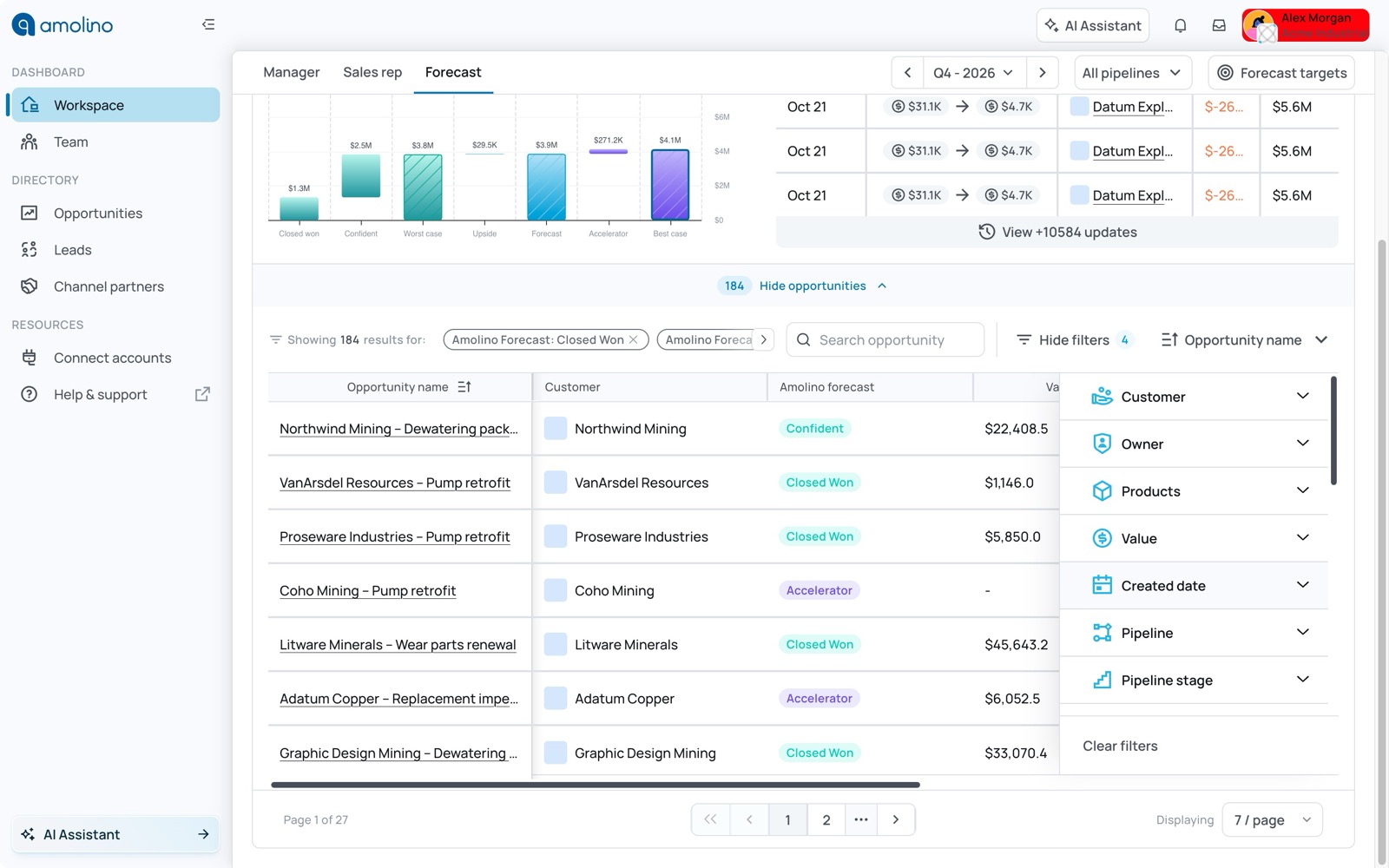
Click a filter name to expand it. You can combine as many filters as you need.
Deal details
| Filter | Options |
|---|---|
| Customer | Pick one or more companies. |
| Owner | Pick one or more deal owners. |
| Products | Pick one or more products on the deal. |
| Value | Between two amounts, equal to an amount, empty or not empty. |
| Created date | A date range for when the opportunity was created. |
| Pipeline | One or more pipelines. |
| Pipeline stage | Stages within each pipeline. Use Reset to clear the stages for a pipeline. |
| Channel partners | Deals that involve a particular vendor, distributor or reseller. |
Forecast
| Filter | Options |
|---|---|
| CRM forecast | The forecast category set in your CRM: Pipeline, Not forecasted, Most likely, Commit, Closed won or Best case. |
| Amolino forecast | Amolino's forecast category: New, Confident, Upside, Accelerator, Unlikely, Closed won or Lost. |
| Health | Healthy, Progressing, At risk or Critical. |
Filtering by CRM forecast and Amolino forecast together is a quick way to find deals where your rep and Amolino disagree. For example, deals a rep marked Commit that Amolino rates Unlikely.
Risk signals
| Filter | Options |
|---|---|
| Blockers | Deals with any blockers, at least 2, at least 3, or a custom range. |
| Pushed | How many times the close date has been pushed out. Set a minimum and maximum. |
| Activity | By activity type (email exchanges, meetings held, Microsoft Teams, Slack messages, files shared) and by how recent it is (last 7, 14 or 30 days, or No activity). |
| Qualifications | Deals that have or are missing qualification criteria: Metrics, Economic buyer, Decision criteria, Decision process, Paper process, Identify pain, Champion and Competition. |
| Competitors | Deals that involve specific competitors, or a minimum number of competitors. |
Clearing filters
Click Clear filters at the bottom of the filter panel to remove all filters at once. Click Hide filters to close the panel.
- Deals that can close the gap: Amolino forecast = Accelerator, sorted by Value.
- Committed deals at risk: CRM forecast = Commit and Health = At risk or Critical.
- Stalled deals: Activity = No activity in the last 14 days.
- Slipping deals: Pushed with a minimum of 2.
- Gaps in qualification: Qualifications missing Economic buyer or Champion.
Related Articles
Forecast Dashboard Overview
A tour of the Forecast dashboard: what it shows, how to pick a quarter and pipeline, and where to go next.
Understanding the Forecast Chart
What the Amolino forecast number means, how forecast categories work, and how to read the best case, worst case and forecast chart.
Setting Forecast Targets
Set quarterly revenue targets for each pipeline and track attainment on the Forecast dashboard.