Help Article
How to Grant Microsoft Permissions for Amolino
A guide for Microsoft administrators to approve Amolino's access to your Microsoft tenant.
How to Grant Microsoft Permissions for Amolino
Who this guide is for: Microsoft administrators at your organization who need to approve Amolino's access to your Microsoft tenant.
Time required: ~5 minutes
Amolino connects to your Microsoft account to help your sales team work more effectively. Specifically, Amolino reads your team's calendar events and emails to automatically track deal activity, meeting notes, and next steps — so your reps don't have to manually log everything in your CRM.
Microsoft requires a tenant administrator (an IT admin or Global Admin at your company) to explicitly approve this access before any users can connect. This is a Microsoft security requirement, not something Amolino controls.
Amolino requests permissions via the Microsoft Graph API to sync your team's sales activity. Below is a detailed breakdown of each permission and why it's needed.
User-Level Permissions
These permissions apply to individual users who connect their Microsoft accounts to Amolino.
| Permission | Why Amolino Needs It |
|---|---|
| Sign in and read user profile | Authenticates the user and reads basic profile info (name, email) to identify who is who in Amolino |
| Read user calendars | Reads individual reps' calendars to track meetings with prospects and log them against deals automatically |
| Read user mail | Reads individual reps' emails to capture outreach activity and conversation history for deals |
| Read and write access to user mail | Allows Amolino to help reps send follow-up emails and log sent emails back to deals |
| Send mail as a user | Enables Amolino to send emails on a rep's behalf (e.g. automated follow-ups or sequences) |
| Maintain access to data you have given it access to | Keeps the connection alive in the background so Amolino can continuously sync activity without requiring reps to re-authenticate constantly |
Admin-Level Permissions
These permissions require admin consent and enable org-wide activity tracking.
| Permission | Why Amolino Needs It |
|---|---|
| Read all users' basic profiles | Reads profile info for all users in the org so Amolino can map activity to the right rep across the team |
| Read all users' full profiles | Reads complete profile info (title, department, manager) to enrich rep and stakeholder data within Amolino |
| Read calendars in all mailboxes | Admin-level permission to read all reps' calendars org-wide, enabling team-level meeting activity tracking |
| Read mail in all mailboxes | Admin-level permission to read all reps' emails org-wide, enabling team-level email activity tracking |
| Send mail as any user | Allows Amolino to send emails on behalf of any rep in the org, used for team sequences and automation |
| Read domains | Identifies your organization's domain to correctly associate users and accounts |
Microsoft Teams Permissions
These permissions enable Amolino to capture deal-related conversations in Microsoft Teams.
| Permission | Why Amolino Needs It |
|---|---|
| Get a list of all teams | Discovers all Teams workspaces in your org so Amolino can find relevant deal conversations across all teams |
| Read the names and descriptions of all channels | Identifies which Teams channels exist so Amolino can find deal-related conversations in the right channels |
| Read the members of all channels | Knows who is in which Teams channel to correctly attribute conversation activity to the right reps and deals |
| Read all channel messages | Reads messages posted in Teams channels to capture deal activity discussed there |
| Read all chat messages | Reads Microsoft Teams chat messages to capture deal-related conversations that happen in Teams |
About "Send mail" permissions
The "Send mail as a user" and "Send mail as any user" permissions are the most sensitive. We want to be clear about how Amolino uses them:
- These permissions are only used for rep-initiated actions such as email sequences or follow-ups
- Amolino never sends emails autonomously without explicit action from a rep
- Reps always have full control over what gets sent and when
About "Read and write access to user mail"
This permission is broader than read-only access. Amolino uses the write capability to:
- Mark emails as read/unread when syncing
- Move emails to folders when organizing deal-related correspondence
- Log sent emails back to the CRM
Amolino does not modify email content or delete emails.
Step 1 — Sign in to the Microsoft Azure Portal
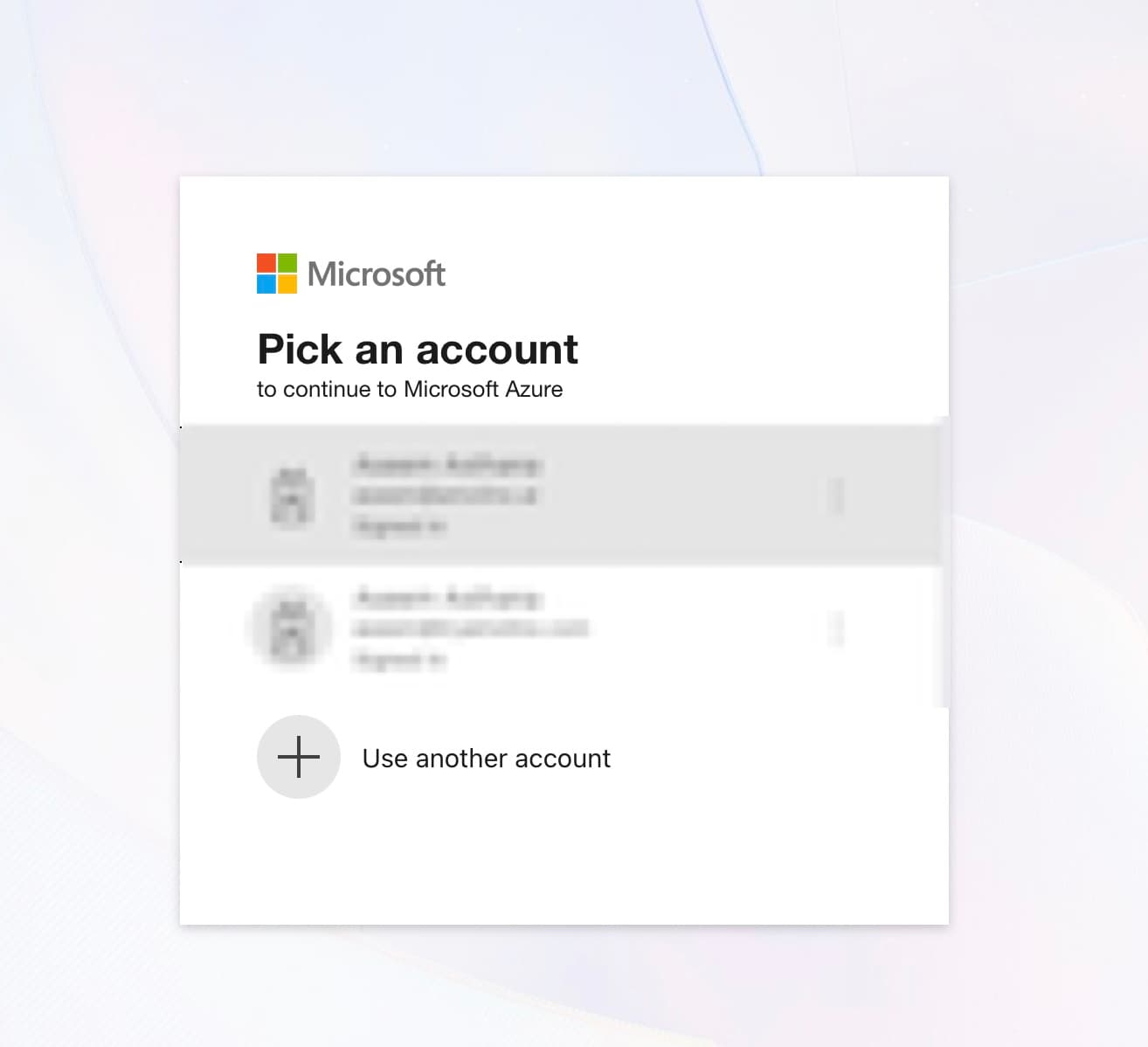
Go to https://portal.azure.com and sign in with your administrator account (the account that has Global Admin or Cloud Application Admin role at your organization).
You will see a page like the following. If you have mutiple tenants, make sure to sign in with the admin for the main tenant your organization uses.
Step 2 — Navigate to Enterprise Applications
Once signed in:
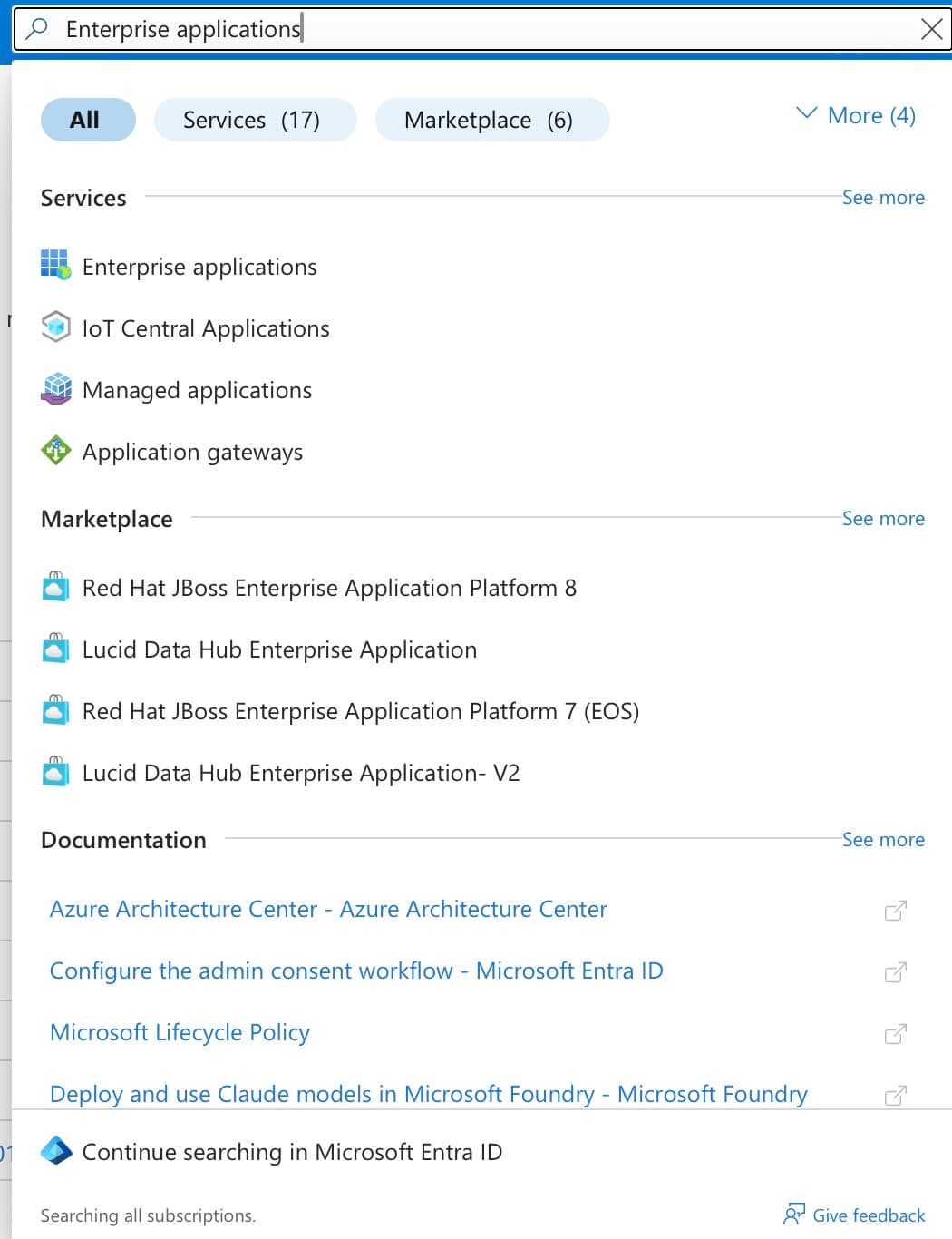
- In the top search bar, type "Enterprise applications"
- Click Enterprise applications in the result
Alternatively, go directly to: Enterprise Applications in Azure Portal
Step 3 — Find the Amolino App
In the Enterprise Applications list:
- In the search box, type "Amolino"
- Click on Amolino in the results
Step 4 — Go to the Permissions Page
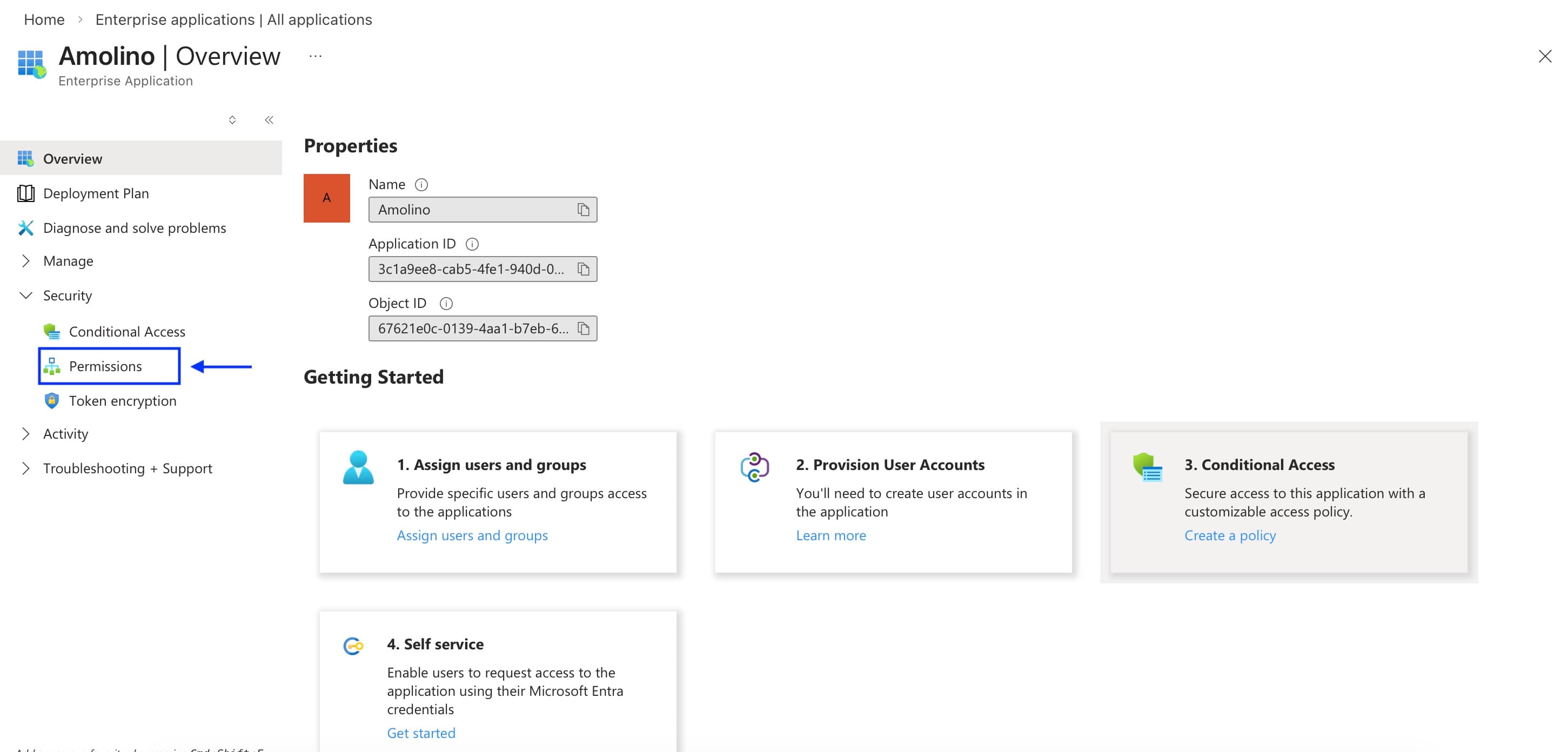
In the left sidebar of the Amolino app page:
- Scroll down and click on "Security" to expand that section
- Click "Permissions"
Step 5 — Grant Admin Consent
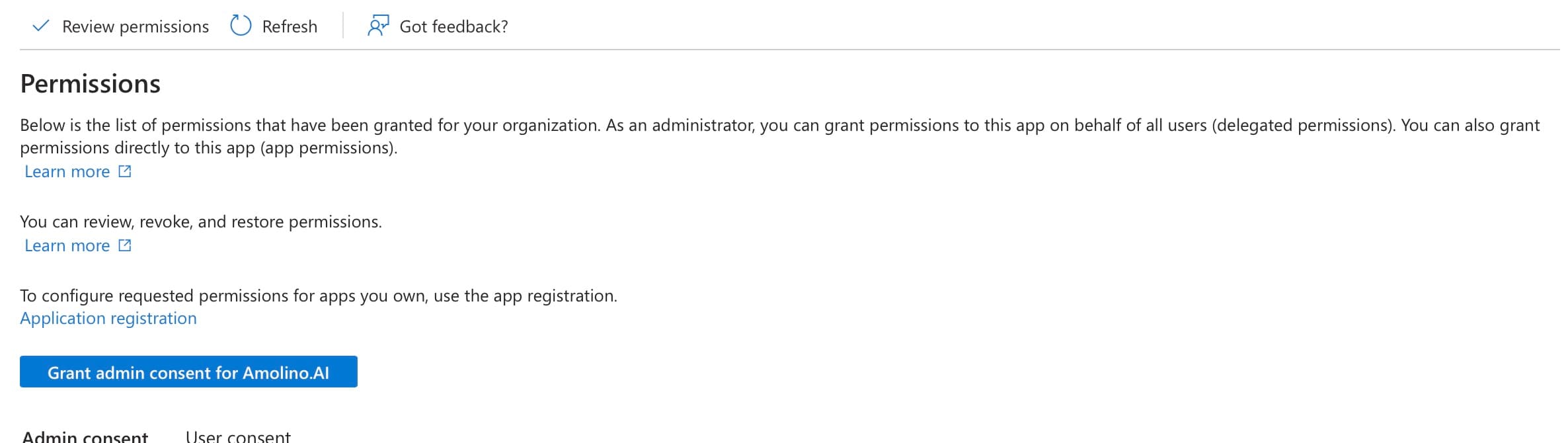
On the Permissions page you will see:
- A list of all permissions Amolino has requested (under Microsoft Graph)
- A blue button at the top that says "Grant admin consent for [Your Organization Name]"
Click that blue button.
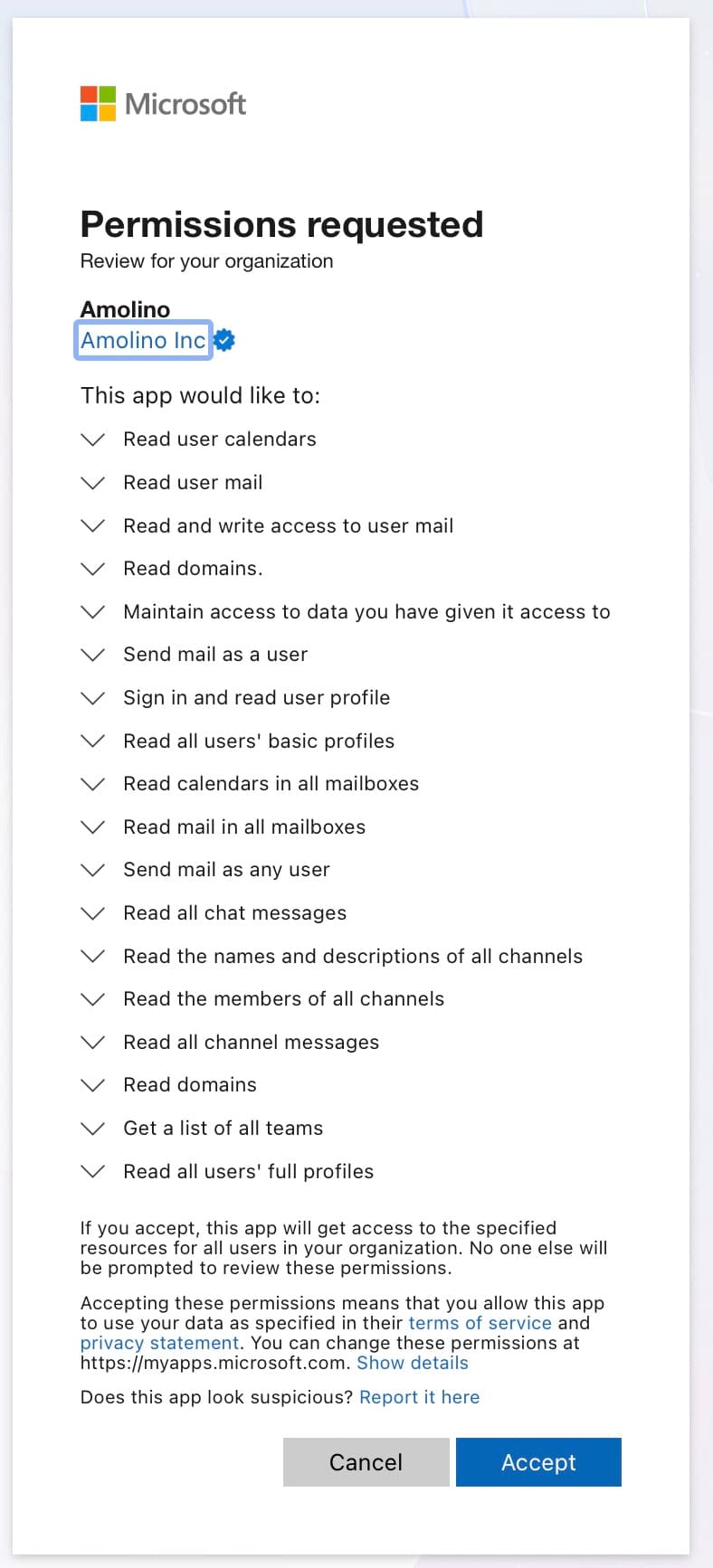
Step 6 — Confirm the Consent
A Microsoft dialog box will appear asking you to review and approve the permissions.
- Review the list of permissions
- Click "Accept" to grant consent
Step 7 — Verify It Worked
After accepting, you'll be redirected back to the Permissions page. To confirm it worked:
- Look at the "Granted by" column in the permissions table — it should now show your name or email address
- The "Granted through" column should show "Admin consent"
Once you've granted admin consent, users at your organization can now connect their Microsoft accounts to Amolino without seeing the "Need admin approval" error.
Each user will still go through their own individual sign-in — they'll just no longer be blocked by the admin approval requirement.
I don't see Amolino in the Enterprise Applications list
The app may not have been added to your tenant yet. Ask your Amolino account contact to send you a direct consent link, or contact hello@amolino.ai.
The page gets stuck after I click "Accept"
This is a known redirect issue. Simply close the stuck tab, go back to Amolino, and try connecting your Microsoft account again — the consent was saved even if the page didn't redirect properly.
I don't have admin access
You'll need to ask your IT department or Microsoft Global Admin to complete these steps. Forward them this guide.
I'm still seeing "Need admin approval" after completing these steps
Try signing out of Amolino completely, clearing your browser cache, and signing back in. If the issue persists, contact hello@amolino.ai.
Contact Amolino at hello@amolino.ai and we'll walk you through it.
Related Articles
Google Workspace Integration Guide
Learn how to integrate with Google Workspace.