Help Article
Google Workspace Integration Guide
Learn how to integrate with Google Workspace.
Google Workspace Integration
This guide will walk you through setting up the Google Workspace integration with Amolino.
You need to be an admin in your Google Workspace and in Amolino.
- Sign in to your Google Admin console at admin.google.com.
- From the Admin console Home page, go to Security > Access and data control > API controls > Manage Third-Party App Access.
- Add Amolino as trusted.
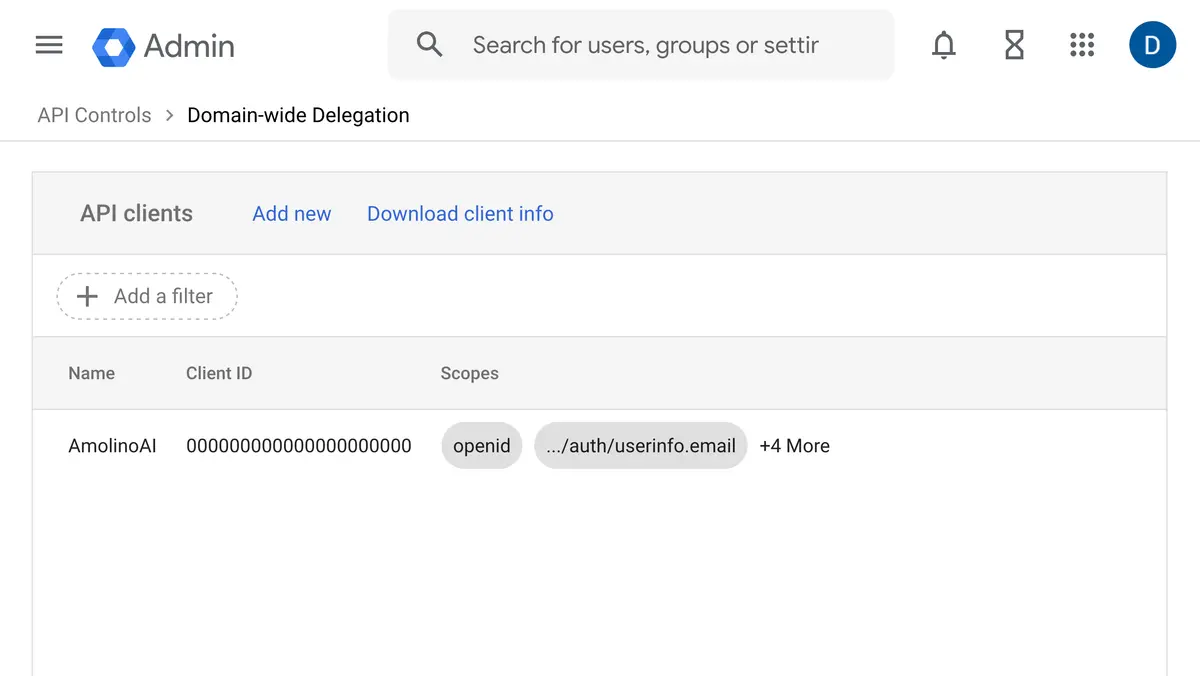
- From the Admin console Home page, go to Security > Access and data control > API controls > Manage Domain Wide Delegation.
- Click on Add new and enter the following details.
Client ID:
110255286194196618640
Scopes:
openid, https://www.googleapis.com/auth/userinfo.email, https://www.googleapis.com/auth/userinfo.profile, https://www.googleapis.com/auth/gmail.modify, https://www.googleapis.com/auth/calendar.readonly, https://www.googleapis.com/auth/admin.directory.user.readonly, https://www.googleapis.com/auth/admin.directory.domain.readonly
- Sign in to your Amolino account.
- Select your organization and click on the gear icon next to it.
- Go to the "Apps & integrations" tab.
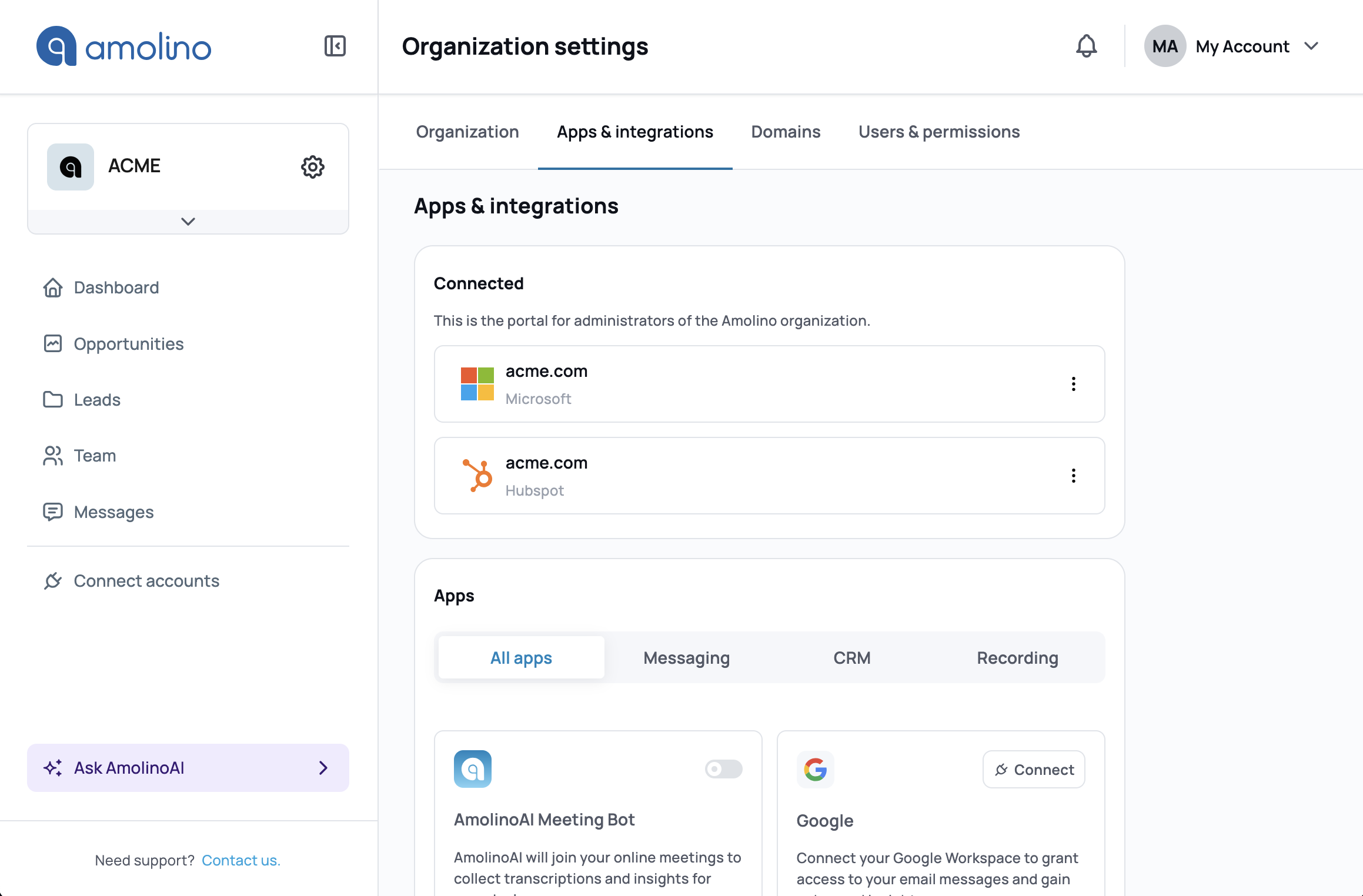
Find Google Workspace in the list of available integrations towards the bottom of the page (under "Apps"). Click on "Connect" to start the integration process.
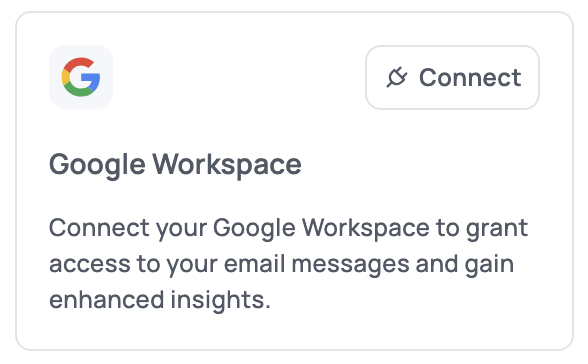
A popup will appear, showing you the same instructions you just completed. Then, it will ask you to authorize the connection. Follow the instructions. The popup will close automatically at the end of the process, and Google Workspace will be connected.
Related Articles
How to Grant Microsoft Permissions for Amolino
A guide for Microsoft administrators to approve Amolino's access to your Microsoft tenant.